Create Collection Task
Description
Use the "New Task" window to create a new data collection task. You can set the task name, select the dataset, and configure collection requirements.
Project Manager
1. Open the "New Task" Window
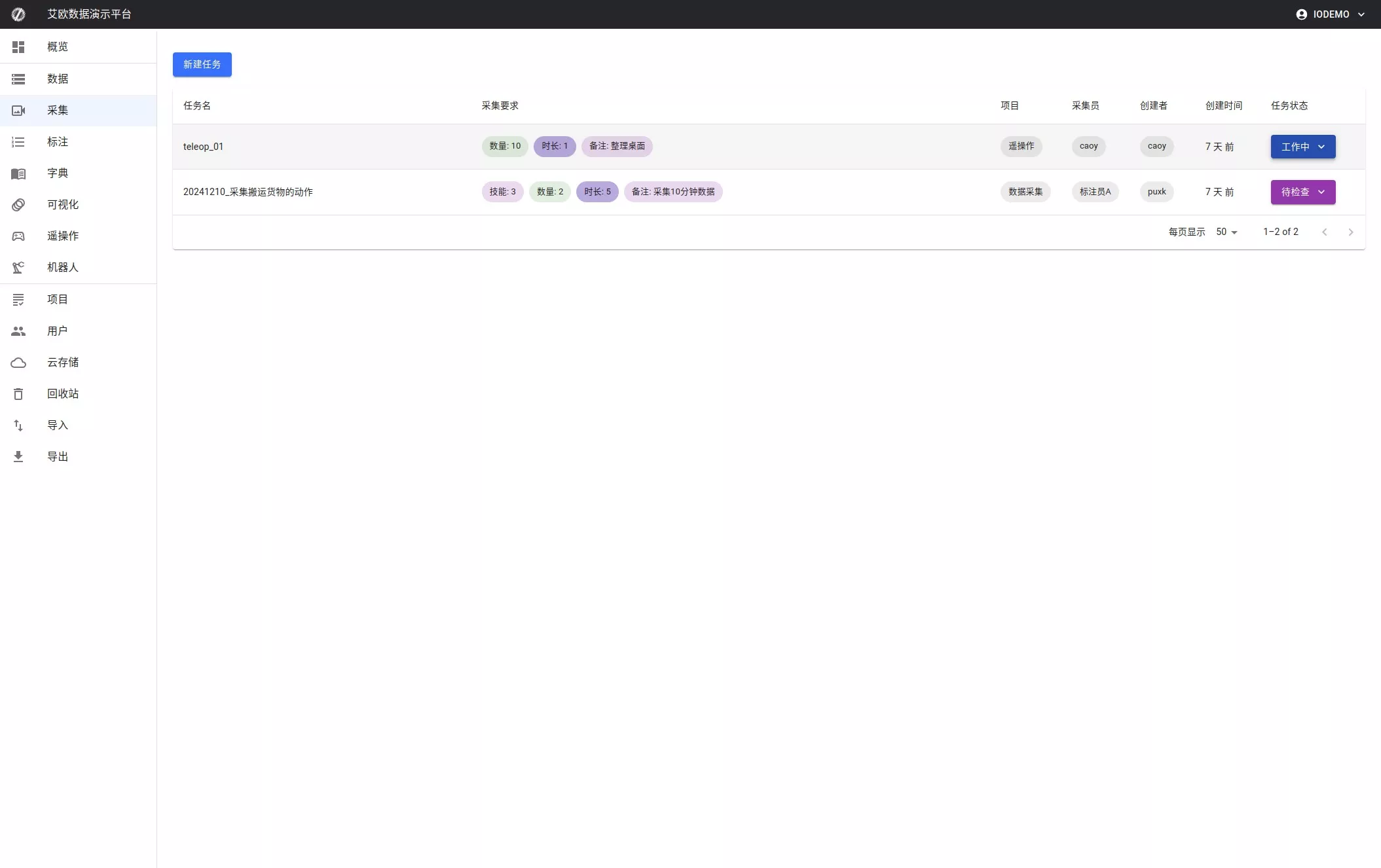
In the left menu, go to the Collection page and click the "New Task" button to open the configuration window.
2. Configure Task Information
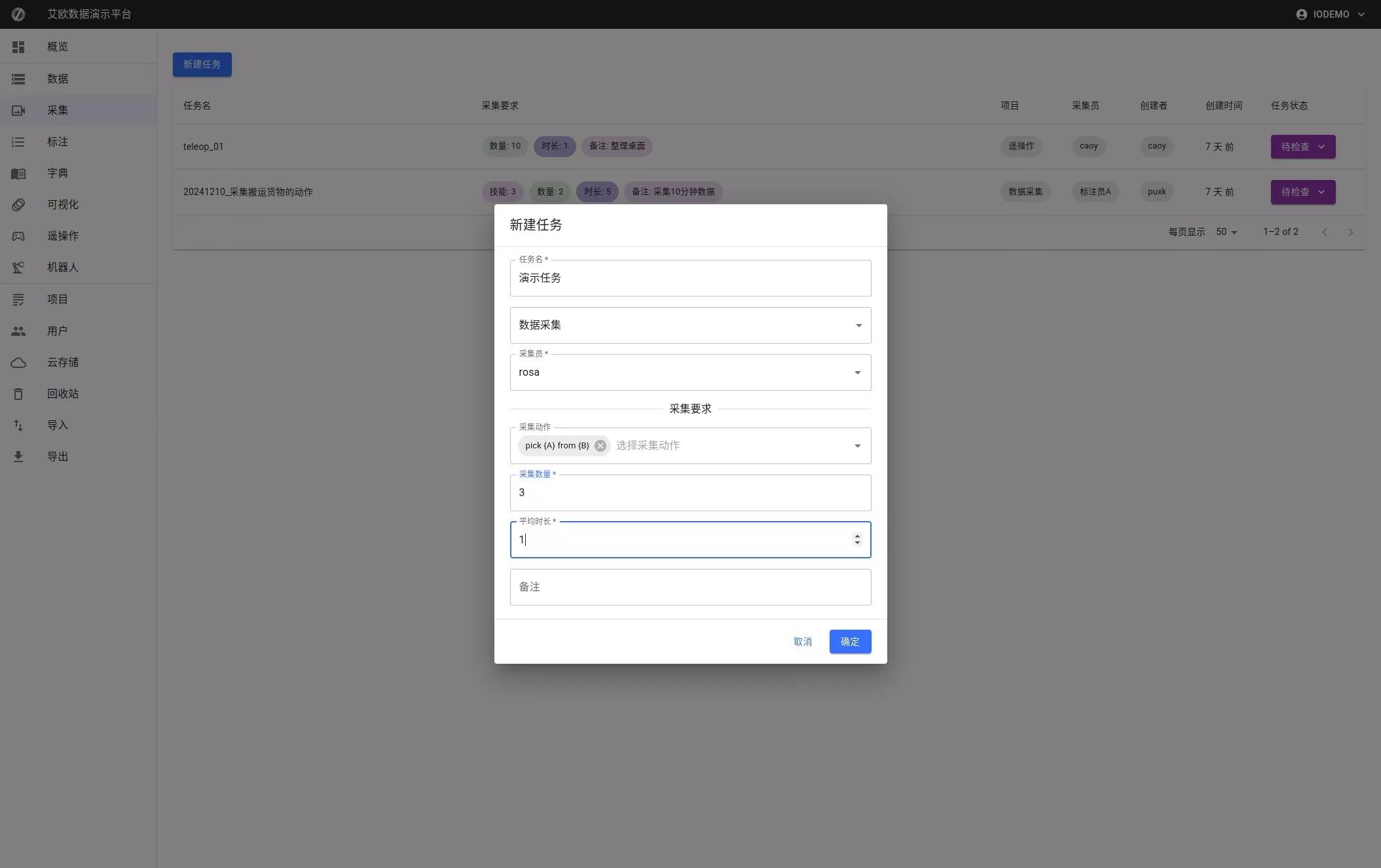
In the popup, fill in the task information as follows:
- Task Name
- Enter the name of the task.
- Example:
Demo Task
- Data Collection
- Select the data collection source from the dropdown list.
- Example:
rosa
- Collection Actions
- Choose the appropriate actions from the "Collection Actions" dropdown (multiple selections allowed).
- Example:
pick (A) from (B)
- Collection Quantity
- Enter the number of data entries to collect.
- Example:
3
- Sub-Task Quantity
- Set the number of sub-tasks.
- Example:
1
- Remarks
- Optionally, add any additional notes in the remarks field.
3. Confirm Task Creation
After filling in the details, click the "Confirm" button to create the task. To cancel, click the "Cancel" button.

Collectors
Collectors can see the assigned tasks on the platform. After starting a task, click the task status button to update the task.
