Data Annotation
Data Viewing
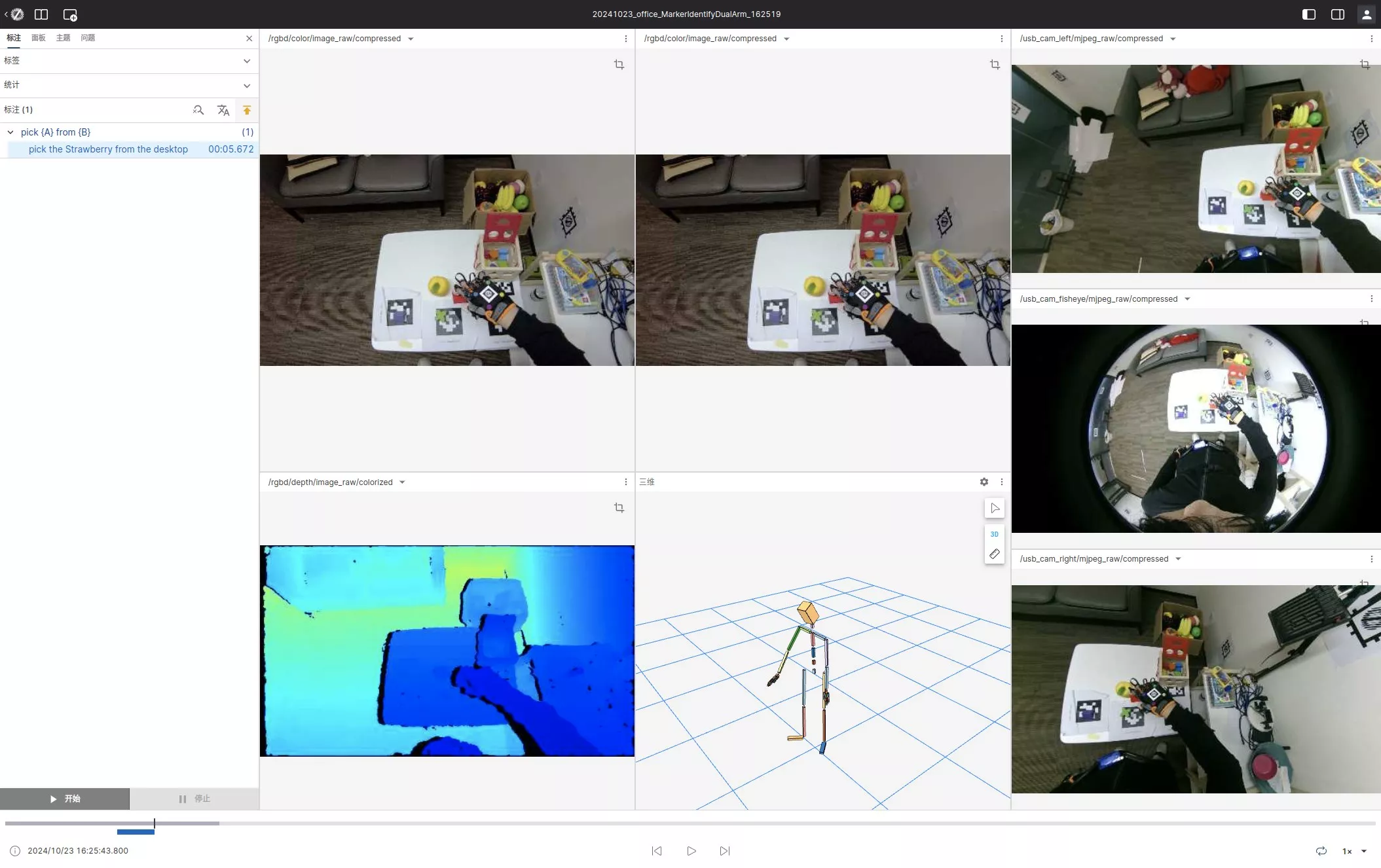
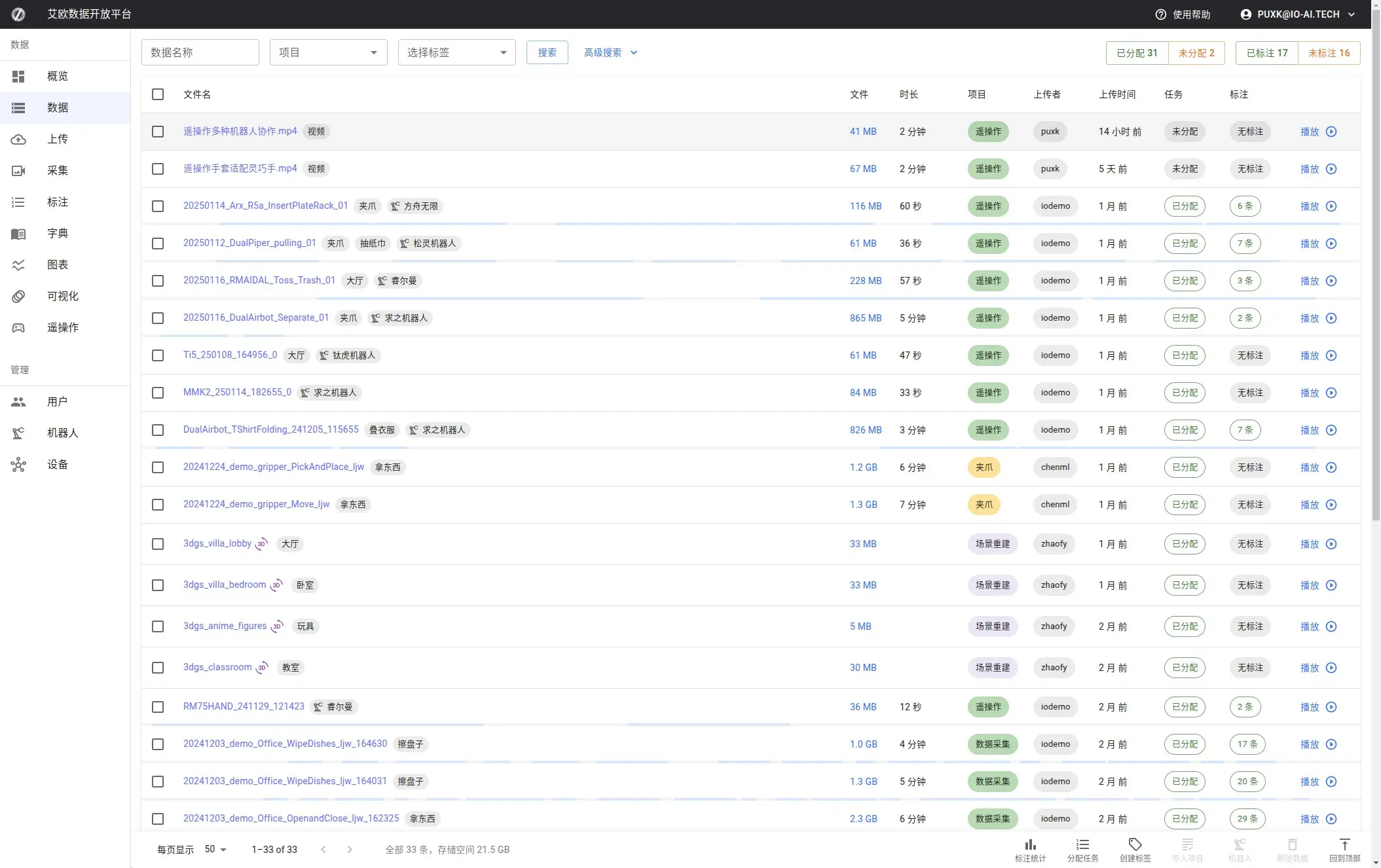
Go to the Data page and click on the file name link to start viewing and annotating data.
Panels
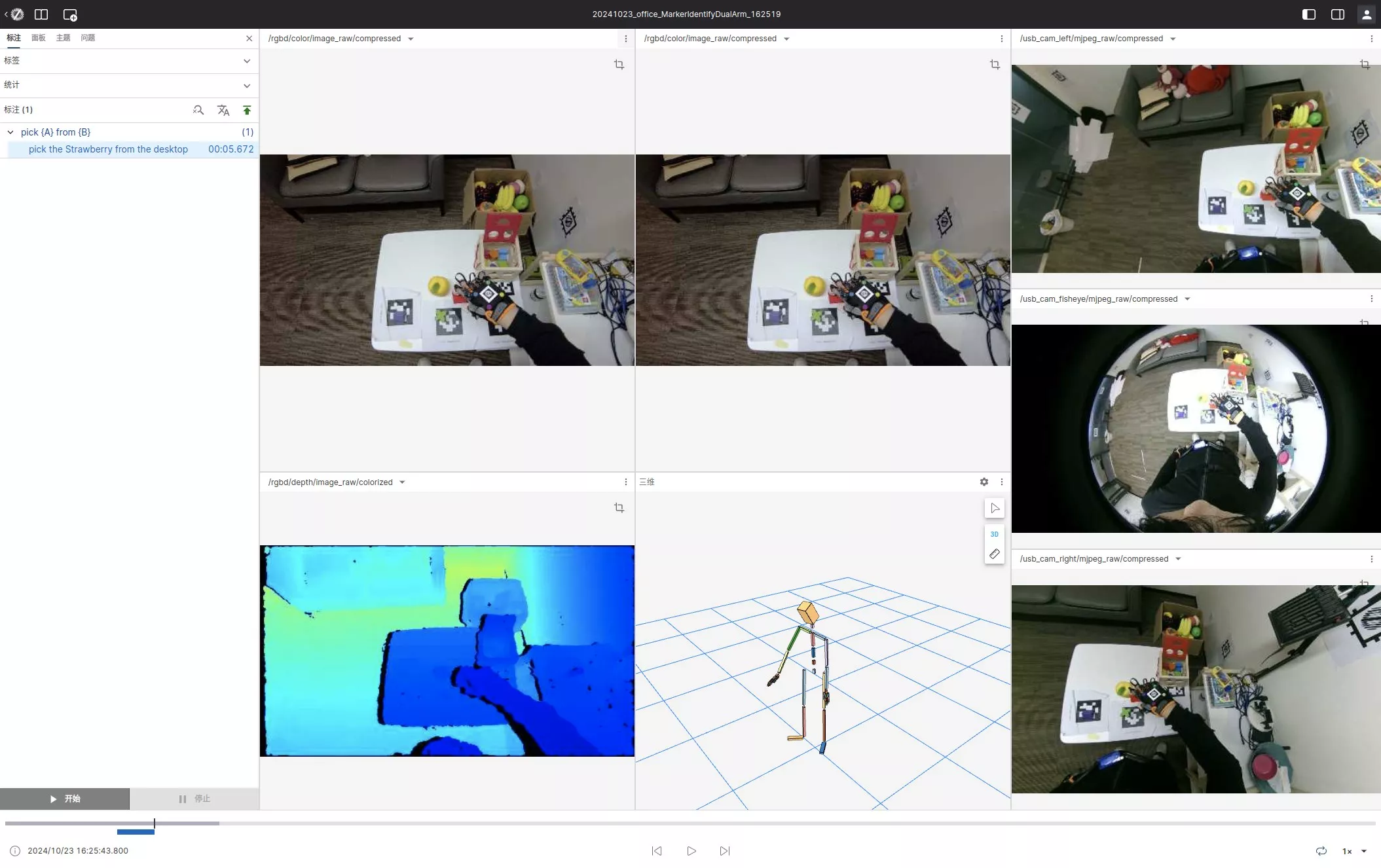
Panels are the rendering units of data, similar to camera views (Topics). A single data entry can have multiple camera views, which you can adjust in size, position, and number for optimal viewing.
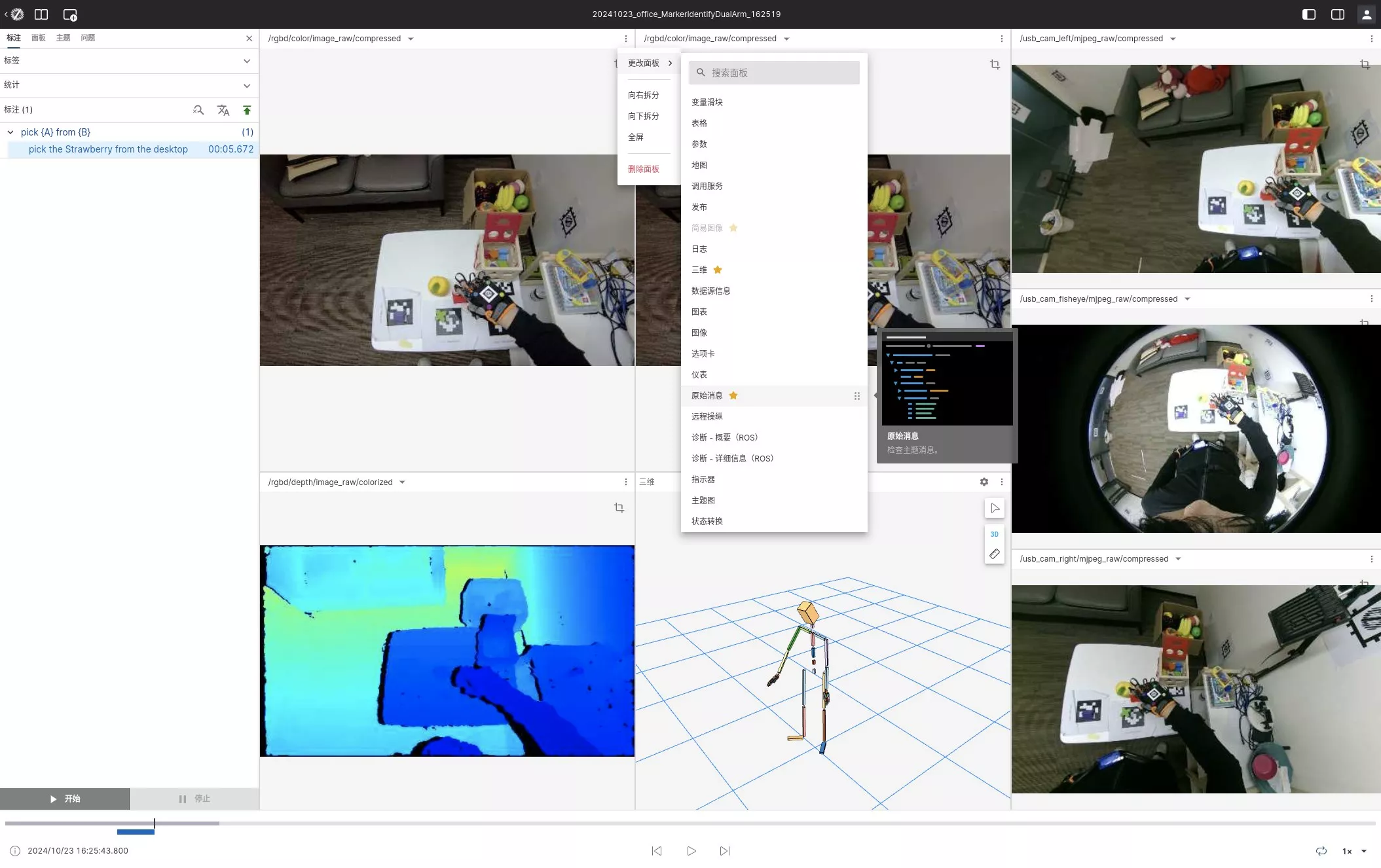
Switching Panels
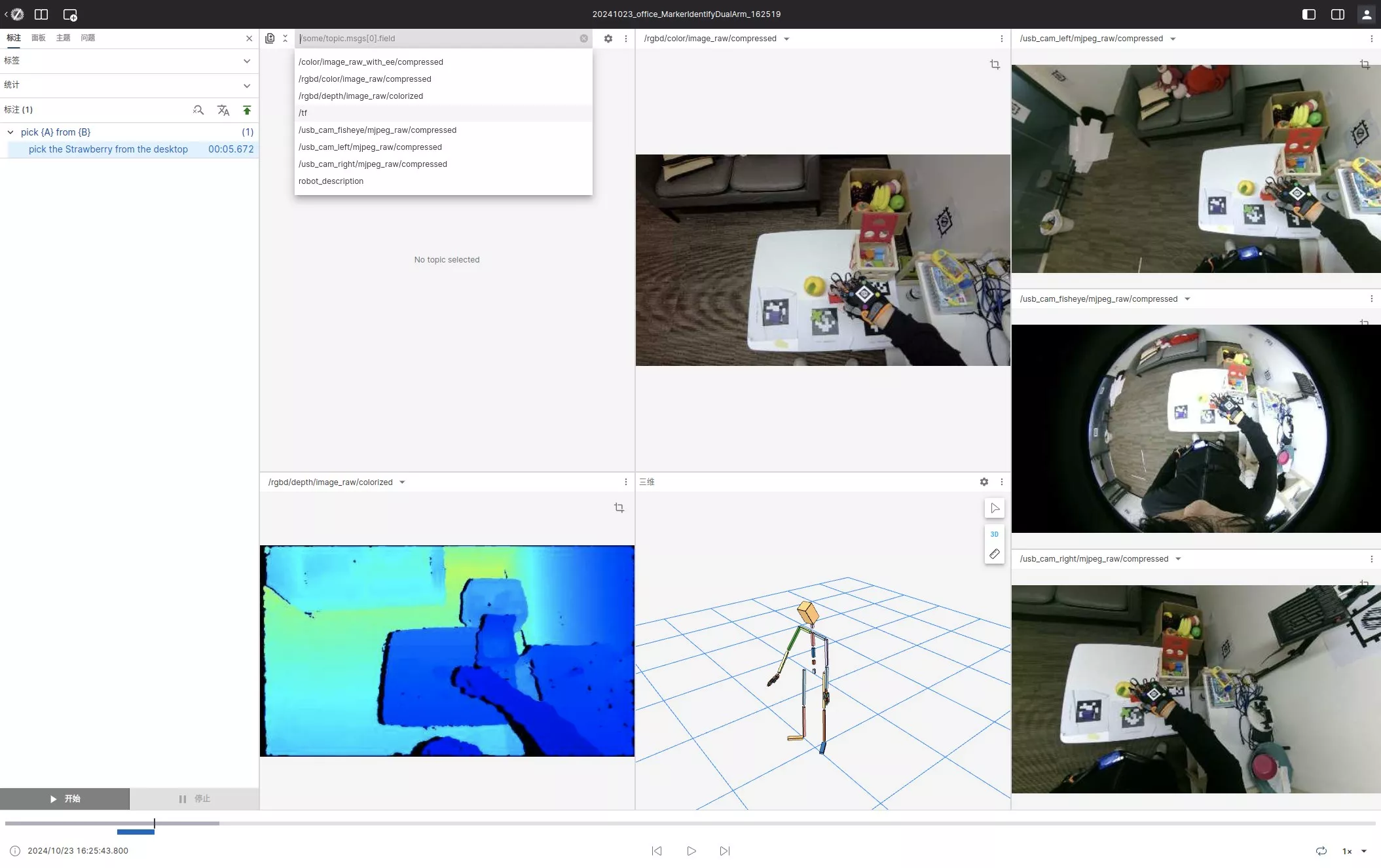
Click the settings button at the top left of any panel to switch panels from the dropdown menu.
Changing Subscription Messages
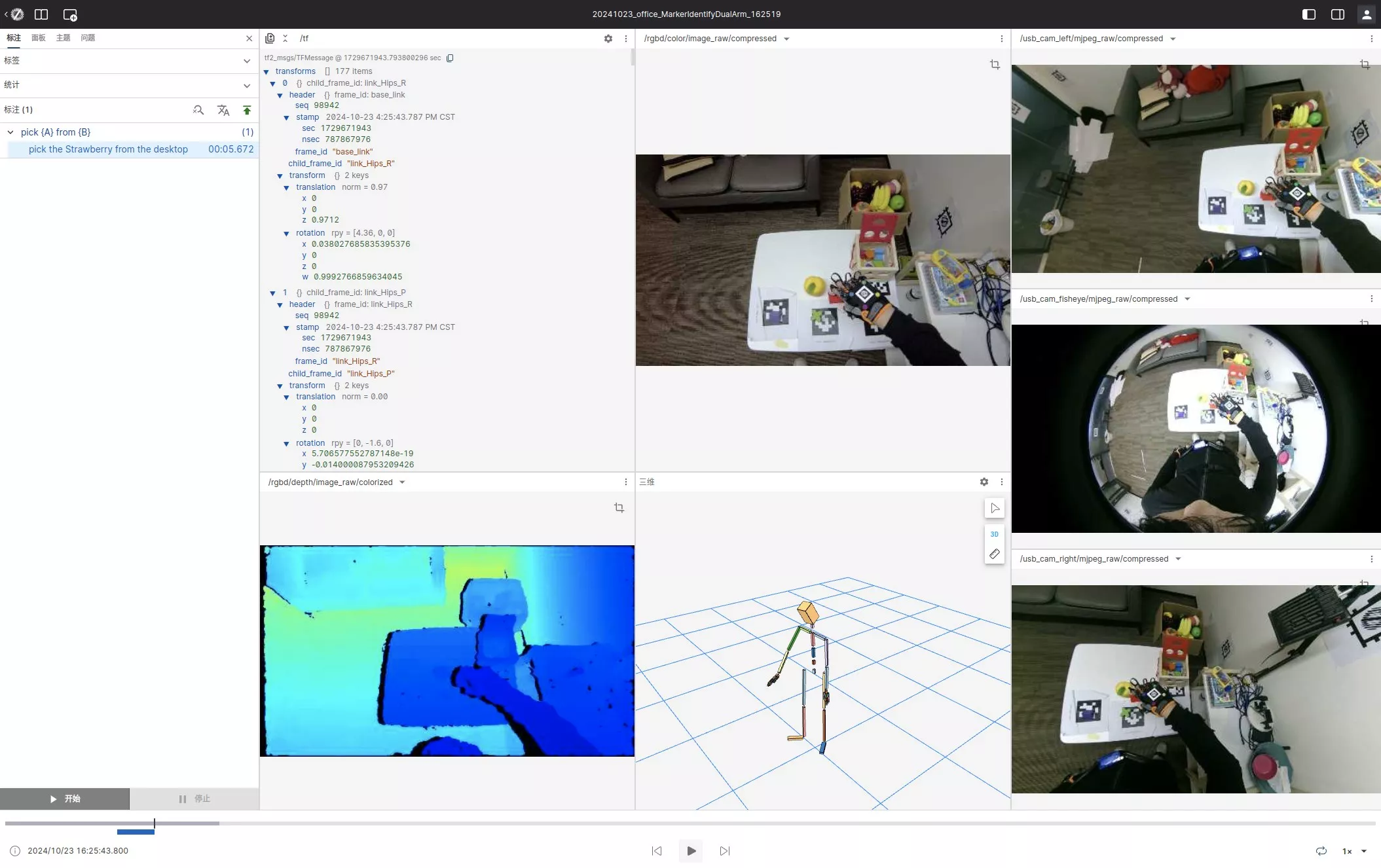
Click the settings button at the top left of any panel to select a different Topic message source from the settings menu.
Simple Annotation
For detailed annotation tasks, refer to the Annotator Workflow.
Start Annotation Task
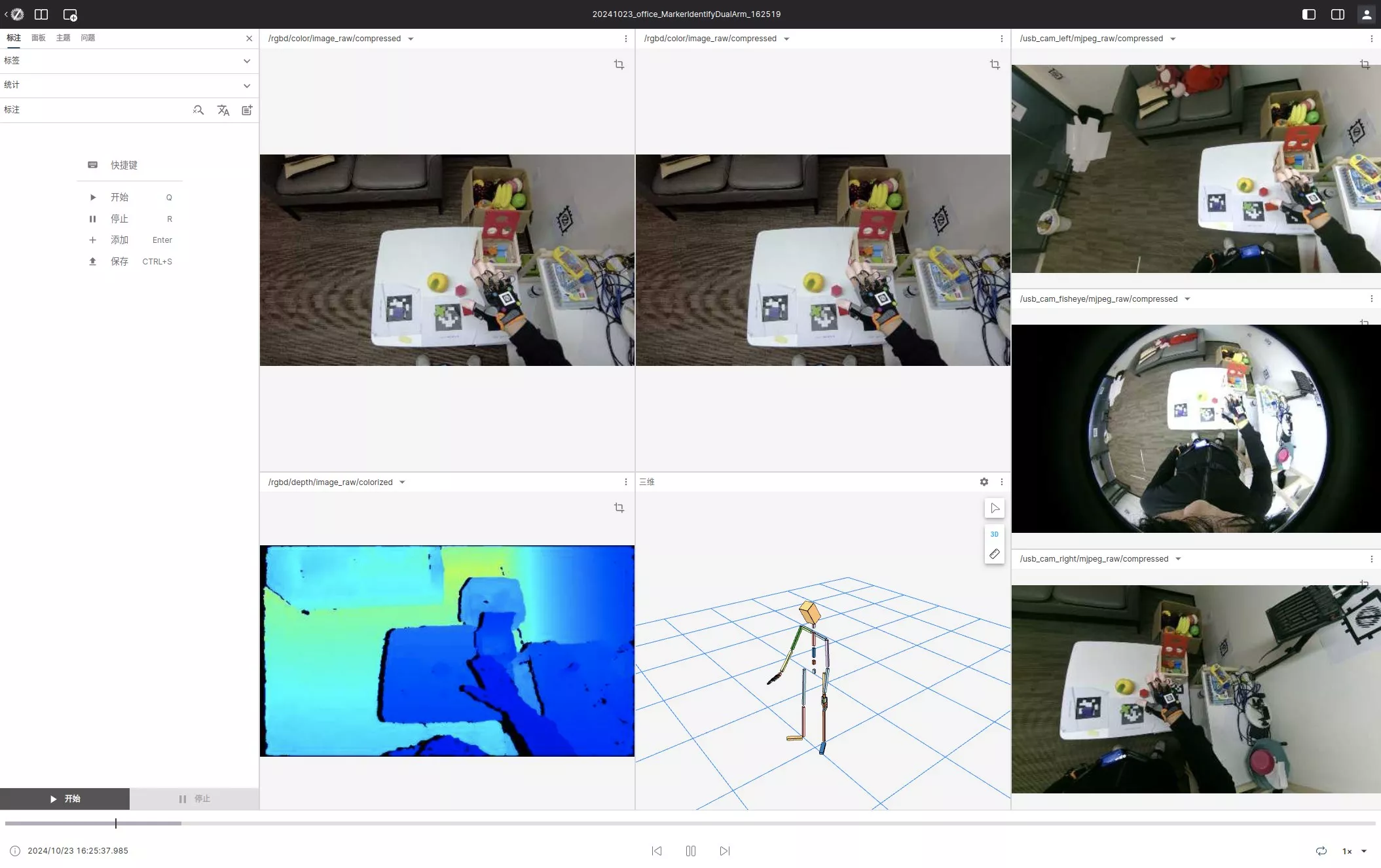
Click the "Start" button (or press the shortcut key Q).
End Current Annotation
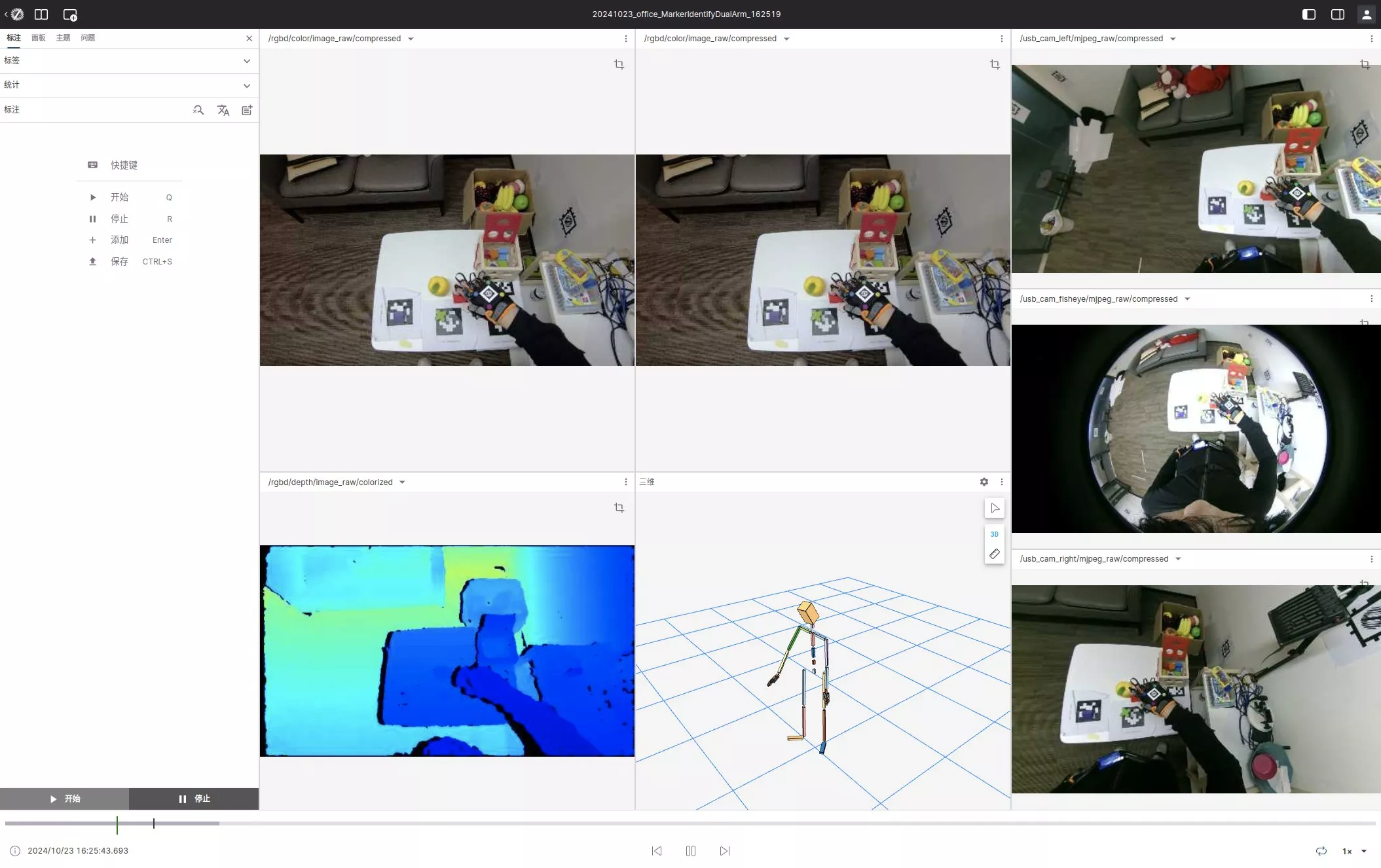
Click the "End" button (or press the shortcut key R) to finish editing the current annotation.
Set Task's Natural Language Meaning
Fill out the form and save it, selecting the appropriate natural language or adding a new dictionary entry.
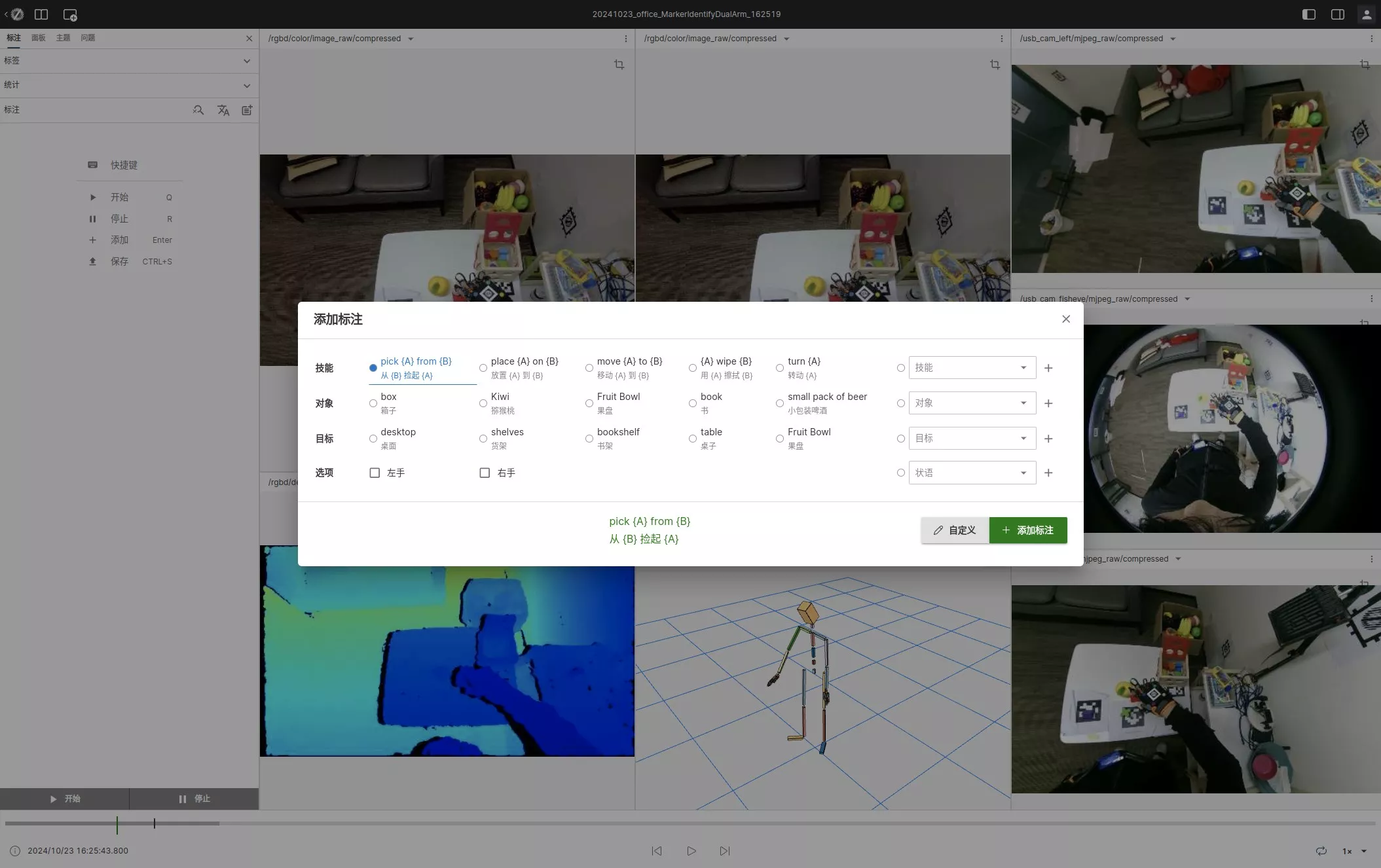
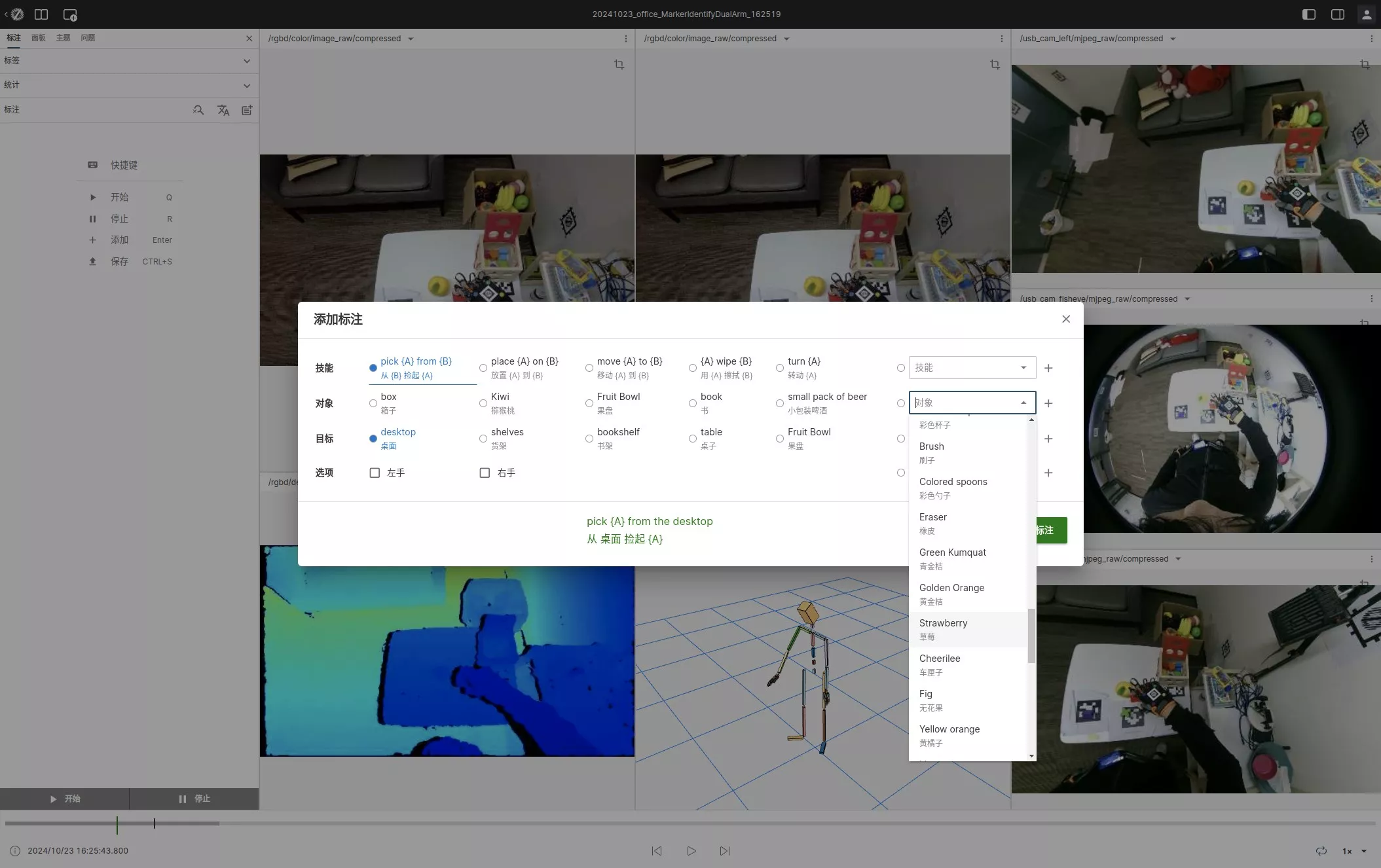
Add Annotation
Click the "Add Annotation" button (or press the shortcut key Enter).
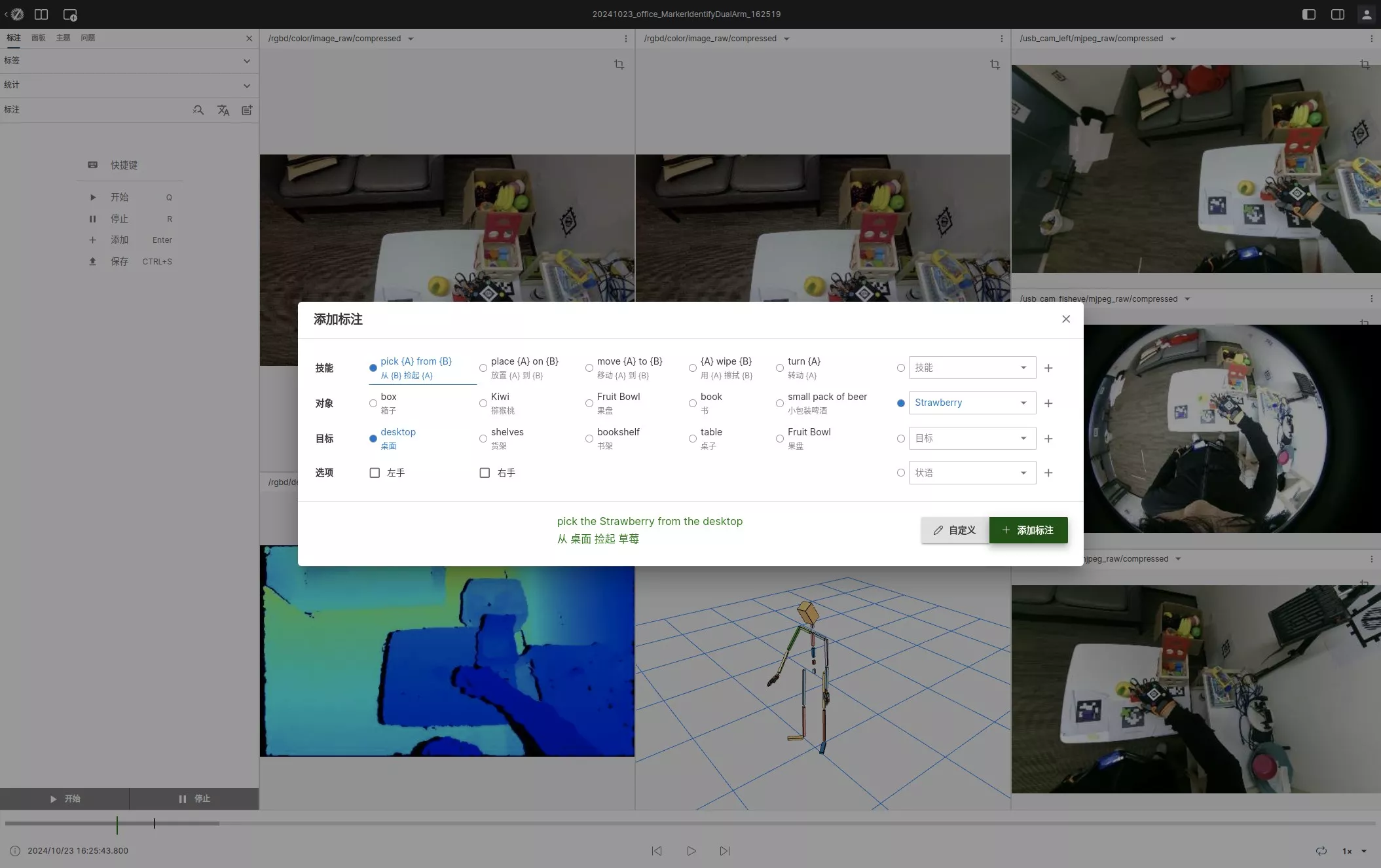
Save Annotation
Click the yellow upload button at the top right to save the annotation to the server.